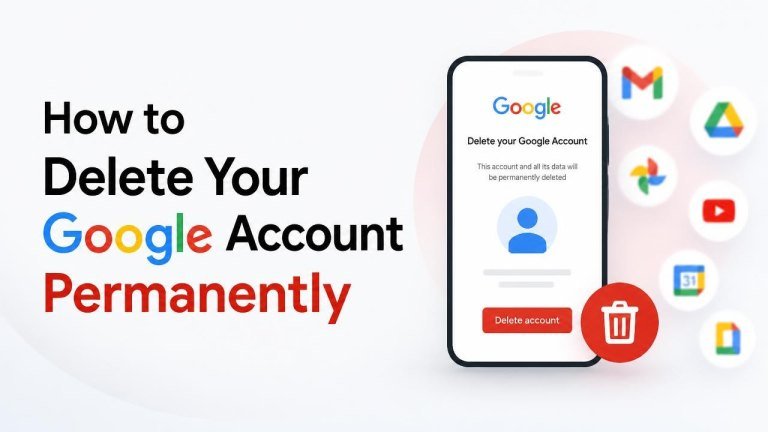
Deleting a Google Account is a permanent decision. It can remove access to Gmail, Google Drive, Google Photos, YouTube data, Google Contacts, Calendar information, and other services connected to that account. Before you continue, review what will be lost, save anything you need, and check whether another service uses your Google sign-in.
What happens when you delete your Google Account?
Deleting your account removes your access to the account and its associated Google data. This may include Gmail messages, Drive files, Photos backups, contacts, calendars, YouTube content, and account settings. You may also lose access to purchases, subscriptions, or third-party services that rely on Google authentication.
The deletion may not be reversible. Google may provide a limited opportunity to recover an account, but you should treat permanent deletion as final rather than depending on recovery being available.
Before deleting your account
Take time to complete these checks before opening the deletion page. A few minutes of preparation can prevent the loss of important documents, personal photos, and account access.

- Review the Google services connected to the account.
- Download files, photos, emails, contacts, and other information you want to keep.
- Change the email address on websites, apps, banking services, and subscriptions that use your Gmail address.
- Tell important contacts about your new email address.
- Check whether you have paid subscriptions, purchases, or YouTube content linked to the account.
- Remove the account from phones, tablets, browsers, and other devices after deletion if necessary.
Download a copy of your Google data
Google Takeout can help you export information from selected Google services. Choose the data you want to preserve, select an appropriate export format and delivery method, then wait for the export to be prepared. Check the downloaded files before deleting the account, because an incomplete backup may be difficult or impossible to replace.
Pay special attention to email archives, stored photos, and shared Drive files. If you own shared files or folders, transfer ownership or make another arrangement where possible before removing the account.
Check third-party sign-ins and recovery details
Use your Google Account security settings to review apps and services that have access to the account. Create separate sign-in credentials for services you want to keep, including your TextNow account, and update your recovery email or phone number where needed. This helps prevent an unexpected login failure, lost account, or interruption to an important service.
How to delete your Google Account permanently
You can start the process from your Google Account settings. The wording and layout may vary slightly by device, but the general steps are the same. Confirm that you are signed in to the correct account before proceeding.
- Open your Google Account settings at myaccount.google.com.
- Select Data & privacy from the navigation menu.
- Find the section for downloading or deleting your data.
- Choose Delete your Google Account.
- Sign in again if Google asks you to verify your identity.
- Read the warnings and confirm that you understand what will be deleted.
- Select the required confirmation boxes, enter your password if requested, and choose the final delete option.
Once confirmed, Google begins processing the deletion. Avoid signing in again unless you are specifically trying to check whether recovery is available, because access and recovery options may be limited.

If you only want to remove one Google service
You do not always need to delete the entire account. If you want to keep services such as Drive or Photos, you may be able to remove only Gmail, YouTube, or another individual service from the account settings. This can preserve your Google Account, saved files, and other services while removing the part you no longer use.
Review the service-specific consequences carefully. Removing Gmail, for example, affects your email address and messages but does not necessarily have the same effect as deleting the whole Google Account or a separate BlueMail account.
What to do after deletion
After the account is deleted, update devices and applications that still try to use it. Remove saved passwords and account profiles where appropriate, and replace the old email address on websites or services. Monitor your other accounts for sign-in prompts, verification requests, and missed messages.
If you discover that you deleted the wrong account or need to attempt recovery, use Google’s official account-recovery process as soon as possible. Recovery is not guaranteed, so careful preparation remains the safest approach.
Frequently asked questions
Does deleting Gmail delete my entire Google Account?
Not necessarily. Google generally provides separate options for removing an individual service and deleting the entire account. Read the confirmation screen closely and choose the option that matches your goal. Deleting the full account can remove Gmail, Drive, and other connected data.
Can I delete a Google Account from my phone?
Yes. You can open Google Account settings in a mobile browser or through supported account settings on your device. Make sure you are working with the right profile and have completed your data backup before confirming deletion.
Will deleting my Google Account cancel every subscription?
Not necessarily. Some subscriptions may require separate cancellation, and services using Google sign-in may continue to have their own accounts or billing arrangements, such as a Shop Pay account. Review each service for billing details, subscription status, and cancellation instructions before deleting Google access.
Final checklist
Before selecting the final delete button, confirm that you have completed your backup, changed your email address on essential services, and reviewed your account’s connected data. Once you are confident that nothing important depends on the account, follow the official Google settings path and read each confirmation carefully.