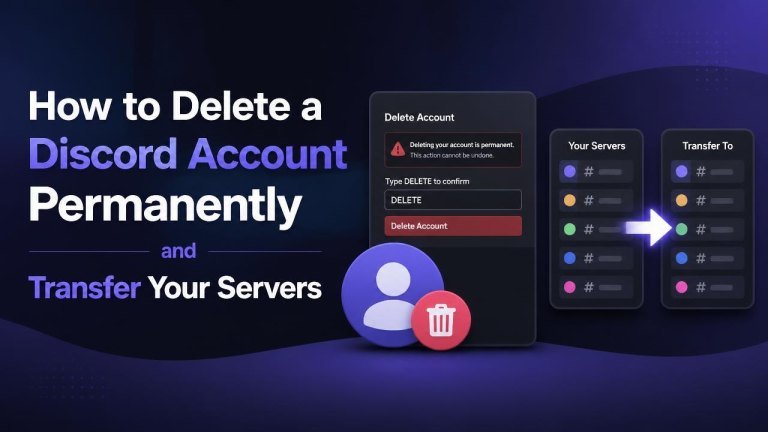
Deleting a Discord account is a permanent decision, especially if you own or manage servers. Before you begin, you should transfer ownership, download your account data, save anything important, and understand what happens to your messages, memberships, and account access.
What to Do Before Deleting Your Discord Account
Account deletion cannot be treated like a temporary break. Review your server ownership, important messages, and connected services before confirming the request. If you skip these checks, you may lose access to communities, files, or account-linked information.
- Identify every server where you are the owner.
- Choose a trusted person to receive ownership.
- Download or preserve any files and information you need.
- Remove payment methods or review active subscriptions.
- Sign out of Discord on devices you no longer use.
How to Transfer Ownership of a Discord Server
Discord server ownership must be transferred before you delete your account. Select a reliable recipient and confirm that they are ready to manage the community. The new owner will control server settings, moderation decisions, and future administration.
Transfer Ownership on Desktop or Web
- Open Discord and select the server you own.
- Open the server menu and choose Server Settings.
- Go to the Members section.
- Find the person who should receive ownership.
- Open the member’s options and select Transfer Ownership.
- Review the warning and confirm the transfer.
Menu names and placement can vary slightly with Discord updates, so read each confirmation carefully. Make sure you select the correct member before approving the ownership change.

Transfer Ownership on Mobile
In the Discord mobile app, open the server, access its settings, and navigate to the member management area. Select the intended recipient and look for the ownership-transfer option. Confirm the recipient’s identity, check the server name, and approve the final transfer prompt.
How to Delete a Discord Account Permanently
After transferring every server you own, open Discord’s account settings. Locate the account-management area and choose the option to delete your account. Discord may ask for your password, an authentication code, or additional confirmation depending on your security settings.

- Open User Settings.
- Go to the account or account-management section.
- Select Delete Account.
- Complete any password or two-factor authentication check.
- Read the warning and confirm the deletion request.
Do not choose account deactivation if you want permanent account deletion. Deactivation is intended as a temporary pause, while deletion starts the process of closing the account. Follow the on-screen instructions and avoid logging back in if Discord places the account in a pending deletion period.
What Happens After Account Deletion?
Once the deletion process is complete, you will not be able to use the account to sign in or recover its settings. Your account may appear as a generic deleted user in places where you previously posted, while some content may remain visible according to Discord’s systems and policies.
Server membership, direct messages, roles, and account-linked settings can be affected. Permanent deletion also means losing access to friends and communities, account history, and personal settings. If you are unsure, consider deactivating the account instead of deleting it.
Common Problems When Deleting a Discord Account
Deletion may be unavailable if you still own a server or if Discord requires an additional security check. Resolve any server ownership issue, verify your login credentials, and complete the required authentication step before trying again.
- You still own a server: transfer ownership or delete the server first, if appropriate.
- You cannot access two-factor authentication: use an available recovery method or contact Discord Support.
- You forgot your password: reset it before starting the deletion process.
- You changed your mind: check whether the account is still within Discord’s cancellation window and follow the available recovery instructions.
Final Checklist Before You Confirm Deletion
Use this checklist to avoid an irreversible mistake. Confirm your server transfers, cancel your premium subscription, and saved information before submitting the final request.
- All owned servers have a new owner or have been closed.
- Important files, messages, and contact details have been saved.
- Subscriptions and payment information have been reviewed.
- You have completed any required security verification.
- You understand that deletion may be permanent and difficult to reverse.
Once everything is ready, submit the deletion request through Discord’s account settings and follow the confirmation instructions carefully.