Whether you no longer use Pinterest or want to remove your online presence, deleting your account is a straightforward process. Before you begin, decide whether you want permanent deletion or a temporary break, because Pinterest also offers a deactivation option.
Before deleting your Pinterest account
Account deletion can affect your boards, saved Pins, and profile information. Review your account first and save anything you may want to keep, just as you would before following a Buyee account deletion guide.
- Download or save important images and links from your boards.
- Check whether any connected apps or services use your Pinterest login.
- Make sure you are signed in to the correct Pinterest account.
- Consider deactivation if you only want to hide your profile temporarily.
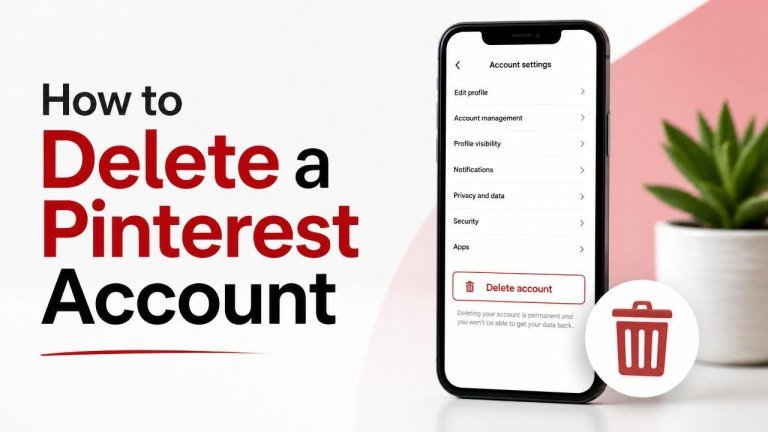
How to delete a Pinterest account on a computer
The names or positions of settings may change slightly as Pinterest updates its interface, but the general process is usually similar.
- Sign in to Pinterest from a web browser.
- Open your profile menu and choose Settings.
- Go to Account management or the section that controls your account.
- Select the option to Delete account.
- Read the information shown, choose a reason if Pinterest asks for one, and continue.
- Confirm the deletion request using the instructions provided. Pinterest may send a confirmation message to your email address.
After confirming, avoid signing back in if you want the deletion process to continue. If Pinterest displays a reactivation or cancellation period, follow the instructions on screen and check the related email for details.

How to delete a Pinterest account in the mobile app
You can usually start the process from the Pinterest app, although the exact menu layout may differ between iPhone, Android, and app versions. The same general approach appears in this WhatsApp account deletion guide.
- Open the Pinterest app and sign in.
- Tap your profile picture, then open the menu or settings control.
- Choose Settings and open Account management.
- Tap Delete account and review the warning.
- Follow the confirmation steps, including any email verification Pinterest requests.
If you cannot find the deletion option, update the app or try Pinterest in a web browser. Search the settings page for account management rather than changing unrelated privacy preferences, as shown in these Telegram account deletion steps.

Deleting a Pinterest account versus deactivating it
Deactivation is a better choice when you are unsure about leaving Pinterest. It can hide your profile and public activity without immediately removing your account data.
Deletion is intended for people who want to remove the account permanently. Before choosing it, consider whether you might need access to old boards, messages, or saved content later. Deactivation gives you more flexibility, while deletion is the more final option.
What to do if you cannot delete your account
If the option is missing or the confirmation does not work, check a few common causes:
- Confirm that you are using the correct login method and account.
- Check the email address connected to Pinterest for a confirmation message.
- Try another browser, clear temporary browser data, or use the latest app version.
- Review whether you are managing a business account or an account connected to another organization.
- Contact Pinterest Help if you cannot access the account or complete the request.
Never share your password or email verification code with someone claiming to delete the account for you. Use Pinterest’s official settings and support pages instead.
Final checklist
Before you finish, confirm that you have saved anything important, selected the correct account, and read Pinterest’s deletion notice. Once the request is complete, keep the confirmation email for your records and avoid signing in again unless you intend to cancel or reverse the request.