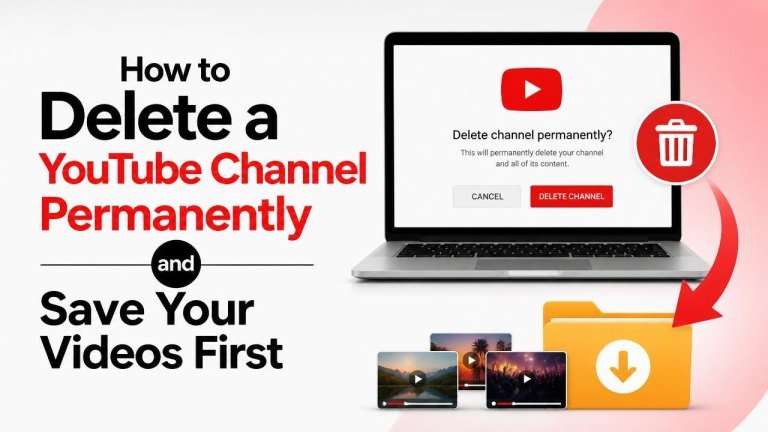
Deleting a YouTube channel is a major decision. Once the channel and its content are permanently removed, recovery may not be possible. Before you continue, save any videos, thumbnails, descriptions, comments, playlists, and other information you may want later, just as you would save your boards first.
What happens when you delete a YouTube channel?
Permanent deletion removes the channel’s videos, comments, and playlists associated with it. Your channel page, public content, and subscriber relationship may also disappear. This action is different from hiding a channel, which can allow you to restore it later.
Make sure you are deleting the correct channel, especially if one Google Account manages multiple YouTube channels or Brand Accounts. Check the channel name, profile image, and content before confirming anything.
Save your YouTube videos before deleting the channel
The safest approach is to create a complete backup before opening the deletion settings. Download your original video files, review your metadata, and store the backup in a separate location.

Download videos from YouTube Studio
For videos you uploaded, YouTube Studio may provide a download option in the content management area. Sign in to the correct channel, open your content list, choose a video, and use the available menu to download it.
This method is useful when you only need a few files. Save each download with a clear filename and check that the file plays correctly before deleting anything.
Use Google Takeout for a broader backup
Google Takeout can help you export data connected with your Google services. Select YouTube and YouTube Music when customizing the export, then choose a delivery method and file format. Depending on your account, the export may include uploaded videos, channel information, and related data.
A Takeout archive can take time to prepare. Do not delete the channel until you have downloaded the archive, opened it successfully, and confirmed that the files you need are present.
Back up information that downloads may not preserve
Video files are only part of your channel history. Also save important titles and descriptions, thumbnail images, tags, captions, playlists, sponsorship records, and licensing documentation. Screenshots or a spreadsheet can help preserve details that may not be included in a video export.

How to permanently delete a YouTube channel
After confirming your backup, use YouTube’s account settings to access the YouTube channel removal controls. You may be asked to verify your identity or sign in again. Look for an option related to advanced settings, removing YouTube content, or permanent deletion.
- Sign in to the Google Account that manages the channel.
- Switch to the specific YouTube channel you want to remove.
- Open YouTube settings and locate the advanced channel options.
- Choose the option to delete or remove YouTube content.
- Complete any security verification requested by Google.
- Select the option for permanent deletion rather than temporarily hiding the channel.
- Review the warnings and confirm the deletion.
Settings can change over time, and the labels may differ depending on whether the channel is connected directly to your Google Account or managed through a Brand Account. Read every confirmation screen carefully before proceeding.
Delete the correct channel safely
Multiple channels can make accidental deletion more likely. Before confirming, verify the channel’s handle, channel URL, and recent uploads. If other people manage the channel, ask them to review the decision and confirm that the backup is complete.
Do not delete your entire Google Account unless that is your intention. Removing a YouTube channel is not the same as deleting Gmail, Google Drive, or other Google services connected to the account.
What to check after deletion
Some changes may take time to appear across YouTube. Check that the channel is no longer publicly accessible, and keep your saved files in a secure location. If you used the channel for business, update links on your website, social profiles, email signatures, and promotional materials.
Also review any services connected to the channel, including video embeds, advertising tools, payment records, music licenses, and team access. Keep documentation for copyright ownership, brand assets, and financial records if you may need them later.
Should you hide the channel instead?
If you are uncertain, hiding the channel is usually a safer temporary choice than permanent deletion. It can give you time to organize your archive, download missing files, and decide whether you want to return.
Choose permanent deletion only when you are confident that you no longer need the public channel or its content. Once the process is complete, restoring deleted videos and channel data may not be possible.
Final checklist before permanent deletion
- Videos downloaded: Confirm that important files play correctly.
- Metadata saved: Preserve titles, descriptions, thumbnails, captions, and playlists.
- Correct channel selected: Verify the account, handle, and channel URL.
- Backup stored safely: Keep at least one copy separate from your main device.
- Connected services reviewed: Update links, records, and access permissions.
- Decision confirmed: Proceed only if you understand that deletion may be irreversible.
Taking these steps first reduces the risk of losing valuable work. Back up everything you may need, verify the exact channel, and only then confirm permanent deletion.