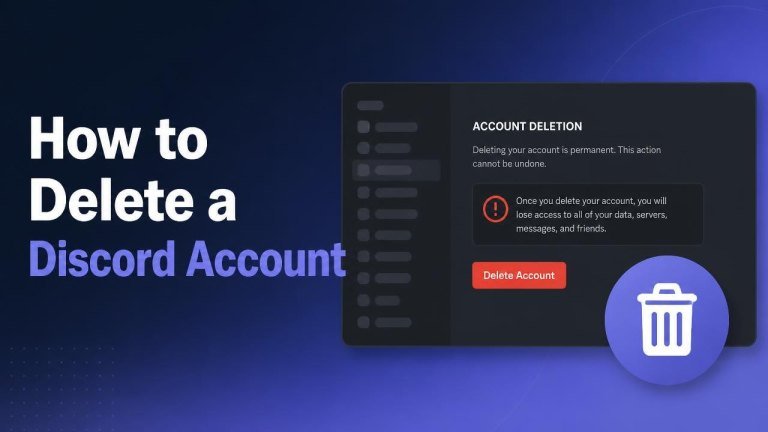
Deleting a Discord account is a permanent decision, so it is worth preparing before you begin. You may need to handle servers you own, save information you want to keep, and make sure you can complete the account verification steps, as with deleting a CVS account.
Before deleting your Discord account
Take a few minutes to review your account before starting the deletion process. Download or save any important messages, files, contacts, or other information you may want later. If you own a server, you must also deal with that ownership first.
- Transfer ownership of any Discord server you want to keep.
- Delete or leave servers that are no longer needed.
- Cancel any active subscriptions separately if applicable.
- Confirm that you know your password and can access your two-factor authentication method.
Deleting the account does not necessarily cancel every service or subscription connected to your payment account, so check those services directly before continuing, including any Cash App bank account.
How to delete a Discord account on a computer
You can start the process from Discord’s desktop app or website. The names of buttons may vary slightly with interface updates, but the account controls are found in your user settings.

- Open Discord and select the user settings gear beside your username.
- Choose My Account from the settings menu.
- Scroll to the account management section and select Delete Account.
- Enter your password when prompted.
- Complete the requested verification code or security check if two-factor authentication is enabled.
- Confirm that you want to delete the account.
Follow the confirmation prompts carefully. Once the deletion process has been submitted, access to your account may be restricted while Discord processes the request.
How to delete a Discord account on mobile
The mobile process is similar, although the settings are accessed through your profile menu. Make sure you are using the correct account before confirming the request.
- Open the Discord app and tap your profile icon.
- Open Account or My Account, depending on the app version.
- Scroll down and tap Delete Account.
- Provide your password and any required authentication code.
- Review the warning, then confirm the account deletion.
If you cannot find the option in the mobile app, update Discord or use the desktop version and follow the computer instructions.
What happens after you delete your account?
Account deletion removes your ability to sign in and use the account normally after the request is completed. Messages you posted in servers may remain visible to other users but can become associated with a deleted or anonymized account rather than your former profile.
Deletion is different from simply uninstalling the app. Removing Discord from your device does not remove your account data, messages, servers, or subscriptions. You must complete the account deletion process in settings.
Delete a server before deleting your account
If you own a Discord server, decide whether it should be transferred or removed before deleting your account. A server you want to preserve should be assigned to another trusted member through the server’s ownership transfer option.

If the server is no longer needed, you can delete it from its settings. Server deletion is a separate action from account deletion, and it permanently removes the server for its members. Check the server name and contents carefully before confirming.
Deleting versus disabling a Discord account
Disabling an account is a temporary option for people who want a break without permanently removing the account. A disabled account can generally be restored by signing in again, while deletion is intended to permanently remove the account after Discord completes its process.
Choose disable account if you may return later. Choose deletion only when you are confident that you no longer need the account or its associated access.
What to do if you cannot delete the account
If the deletion option is unavailable or the confirmation fails, check that you are using the correct password and that your authentication method is working. Also verify that you have resolved any server ownership requirements shown by Discord.
For account access problems, use Discord’s official support channels. Do not share your password, backup codes, or authentication codes with anyone claiming to provide deletion assistance.
Frequently asked questions
Can I recover a deleted Discord account?
Account deletion should be treated as permanent. If you change your mind, act quickly and sign in if Discord still allows the account to be restored during its processing period. Once deletion is complete, recovery may not be possible.
Does deleting the app delete my account?
No. Uninstalling the app only removes it from your device. Your Discord account remains active until you delete or disable it through account settings, much like deleting a TikTok account.
Will deleting my account remove my messages?
Deleting an account does not guarantee that every message disappears from servers. Existing messages may remain while the account identity is changed or anonymized, so remove sensitive content before submitting the deletion request if possible.
Final checklist
Before selecting the final confirmation, make sure you have saved important information, transferred or removed servers you own, reviewed subscriptions, and confirmed your login details. These steps help prevent lost access and make the account deletion process smoother.