Before leaving DoorDash, handle DashPass cancellation first and then submit your delete an Uber account request. This order helps prevent another renewal and gives you time to save receipts, resolve refunds, or check any information you may need later.
What to Do Before Deleting Your DoorDash Account
Account deletion is a permanent step, so review your active subscriptions, recent orders, and payment details first. Make sure there are no unresolved delivery issues, refunds, credits, or support cases that you may need to reference.
- Save any receipts or order information you may need.
- Check whether DashPass is billed directly by DoorDash or through an app store.
- Resolve open support requests, refunds, or account disputes if possible.
- Confirm that you are signed in to the correct DoorDash account.
How to Cancel DashPass
Cancel DashPass before deleting your account. The exact labels can vary by device and app version, but you can usually manage the subscription from your DoorDash account settings.
Cancel DashPass in the DoorDash App
Open the app and go to your account settings or profile area. Look for DashPass, choose Manage membership or a similar option, and follow the cancellation prompts. Read the final confirmation screen carefully so you know whether the membership remains available until the end of the current billing period.
- Open DoorDash and sign in.
- Open your profile or account menu.
- Select DashPass or the membership section.
- Choose the option to manage or cancel the membership.
- Complete the confirmation steps and save the cancellation confirmation.
Cancel a Subscription Billed Through an App Store
If DashPass was purchased through Apple subscriptions or Google Play subscriptions, cancellation may need to be completed through that store instead of inside DoorDash. Open the subscription-management area for your device, select DashPass, and follow the cancellation instructions shown there.
After canceling, check the subscription page and your email for confirmation details. If the subscription does not appear where expected, review your DoorDash account and payment records before assuming it has been canceled.
How to Delete Your DoorDash Account
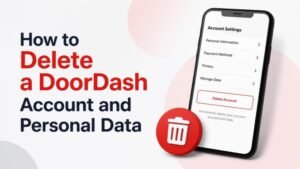
Once DashPass is canceled, use DoorDash’s account or privacy controls to request deletion. Look for a Privacy, Account Management, or Delete Account option after signing in on the DoorDash website or app.
- Sign in to the DoorDash account you want to remove.
- Open account settings and locate the privacy or account-management section.
- Select the account-deletion option or begin a deletion request.
- Review the information about permanent deletion and enter any requested verification details.
- Submit the request and keep the confirmation message or email for your records.
If you cannot find the option, use DoorDash’s official Help Center or privacy-request channel. Use only official DoorDash pages and avoid giving login information to anyone claiming they can delete the account for you.
What Happens After You Submit the Request?
Deletion may not be immediate. DoorDash may need to verify the request, process it, or retain certain information where required for legal obligations, fraud prevention, or transaction records. You may also lose access to order history, saved addresses, credits, and other account features.
Watch for a confirmation email or an additional verification request. If you continue receiving subscription notices after cancellation, check the billing source and contact official DoorDash support with your confirmation details.
Common Problems and Quick Fixes
Some issues are easier to solve when you identify whether they involve the subscription source, wrong account, or pending transaction.
- No cancellation button: Check whether the subscription is managed through Apple or Google Play.
- DashPass still appears active: Review the cancellation confirmation and the subscription page where payment is managed.
- Unable to delete the account: Resolve required verification steps and contact official support if the deletion tool fails.
- Recent charge or refund pending: Save the transaction details before submitting deletion, then ask support how the case will be handled.
Final Checklist
Before you leave, confirm that DashPass is canceled, your important records are saved, and your deletion request is confirmed. Also remove DoorDash from saved passwords or devices if you no longer want the app connected to your personal information.
- Cancel DashPass through the correct billing provider.
- Save receipts, support messages, and confirmation emails.
- Submit the DoorDash account-deletion request.
- Check for follow-up verification or confirmation.
- Monitor your payment method for unexpected future charges.