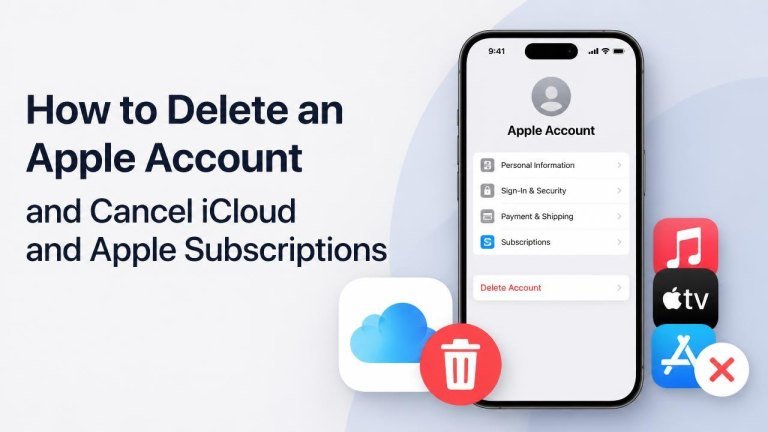
Deleting an Apple Account is a permanent decision. Before you begin, cancel active subscriptions, review your iCloud data, and make sure you can access any services or purchases you still need. This guide explains how to prepare, cancel iCloud+ and Apple subscriptions, and submit an Apple Account deletion request.
What happens when you delete an Apple Account?
Deleting your account removes your access to many Apple services, including iCloud, App Store purchases, and Apple Media Services linked to that account. You may also lose access to synced photos, files, contacts, backups, email, and other information stored in iCloud.
Account deletion is different from signing out, removing an account from a device, or canceling a subscription. If you only want to stop using iCloud or avoid future charges, you may not need to delete the entire account.
Before deleting your Apple Account
Take time to protect information you may need later. The most important preparations involve backing up data, checking subscriptions, and reviewing account access.

- Download important photos, videos, documents, contacts, and other iCloud data.
- Create a current backup of your iPhone, iPad, or Mac if you plan to keep using the device with another account.
- Review purchases, subscriptions, gift card balances, and payment methods.
- Check whether apps, services, websites, or devices use your Apple Account to sign in.
- Save receipts, invoices, files, and other records you may need after deletion.
- Sign out of the account on devices you intend to give away, sell, or continue using with a different account.
If you use your Apple Account for work, family sharing, two-factor authentication, or important logins, arrange replacement access before submitting a deletion request.
How to cancel Apple subscriptions
Canceling an Apple subscription stops its renewal, but it usually does not delete your Apple Account. Use the device or account where the subscription was purchased, and confirm that you receive a cancellation message or see a clear cancellation status. Look for active subscriptions, renewal details, and confirmation before leaving the settings screen, as explained in this ChatGPT subscription cancellation guide.
Cancel a subscription on an iPhone or iPad
On an iPhone or iPad, open Settings, tap your name, and select Subscriptions. Choose the service you want to stop, then select the available cancellation option and follow the prompts.
If the subscription does not appear, check whether you are signed in with the Apple Account used for the purchase. You can also review your purchase history or contact the company that bills you if the charge comes from a different provider.
Cancel a subscription on a Mac
On a Mac, open the App Store, select your name, and open the account settings or subscription management area. Choose the relevant subscription and follow the cancellation instructions. Confirm the service name, billing account, and cancellation status before closing the window.
Cancel a subscription purchased outside Apple
Not every subscription is billed by Apple. If a service does not appear in Apple’s subscription list, visit the provider’s website or contact its support team. Mobile carriers, app companies, and other payment platforms may manage their own billing, renewal, and refund requests.
How to cancel or change iCloud+
iCloud+ is managed through your Apple Account settings. You can usually change the storage plan or downgrade to the free plan instead of deleting your account. Before making a change, check your current storage use and prepare any files that exceed the replacement plan. Pay attention to storage usage, plan changes, and billing effects.
On an iPhone or iPad, open Settings, tap your name, select iCloud, and open the storage or subscription management options. On a Mac, open System Settings, select your name, choose iCloud, and look for the option to manage your storage plan.
If your storage use is higher than the available space after a downgrade, iCloud may stop syncing or updating some information until you free space or choose a larger plan. Download or move important data before confirming the change.
How to request permanent Apple Account deletion
Apple provides an online account management and data privacy process for requesting deletion. Sign in with the Apple Account you want to remove, review the information shown, and select the option to request account deletion. Read each warning carefully because deletion is permanent, access may end, and Microsoft account deletion process may also require careful preparation.
- Back up or download the information you want to keep.
- Cancel subscriptions and resolve any account or billing issues.
- Sign out of the Apple Account on your devices.
- Open Apple’s official account and privacy management page.
- Sign in and choose the account deletion option.
- Review the terms, provide the requested contact information, and submit the request.
- Keep any confirmation code or reference information provided during the process.
Apple may provide instructions for checking the request status. Do not assume that removing the account from one device deletes the account itself; those are separate actions.
What to do after submitting the request
After you submit a deletion request, avoid signing back in unless Apple specifically instructs you to do so. Keep your confirmation details, replacement login information, and downloaded backups in a safe place, following the same precaution as the Telegram deletion and backup steps.
Remove the old account from devices you still own, and reset devices you are selling or giving away. If you use Apple services through a family group, tell other members that shared purchases, storage, or other features may be affected.
Common problems and solutions
If you cannot cancel a subscription, first identify who is billing you. Check your email receipts, bank or card statements, and the subscription settings on any other Apple Account you use. If you cannot sign in, recover access before attempting account changes. Billing records, account recovery, and purchase history can help identify the correct account.
If you are only giving away an iPhone, iPad, or Mac, you generally do not need to delete your Apple Account. Back up the device, sign out, erase its content and settings, and remove it from your account when prompted. This protects your information while allowing you to keep the account for other devices or services.
Final checklist
Before completing the process, confirm that you have handled subscriptions, iCloud data, and device sign-out.
- Important iCloud data has been downloaded or backed up.
- Apple subscriptions and third-party subscriptions have been canceled with the correct billing provider.
- iCloud+ has been canceled or changed if you no longer need the storage plan.
- Devices, apps, and websites no longer depend on the account for access.
- You have submitted the deletion request through Apple’s official privacy and account tools.
- You have saved the confirmation or reference information.
If you only want to stop charges or free up storage, canceling subscriptions or changing your iCloud+ plan is usually safer than deleting the entire Apple Account.