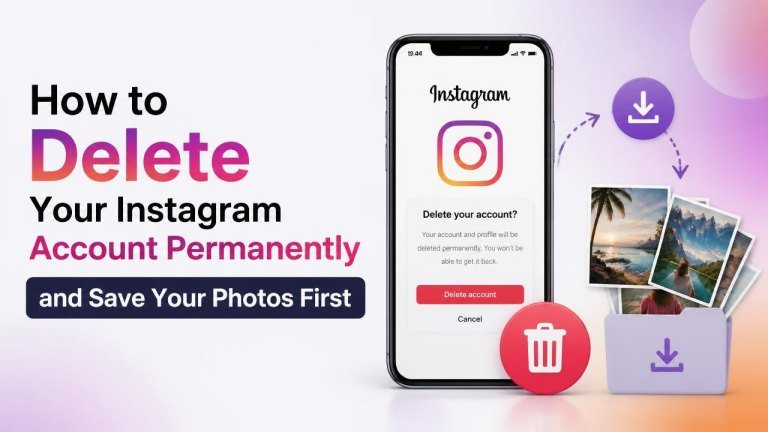
Deleting Instagram permanently is a serious step: once the deletion process is completed, your profile, posts, comments, followers, and other account information may no longer be recoverable. Before you proceed, download a copy of the photos, videos, messages, and account data you want to keep.
Before deleting Instagram, decide what you want to keep
Make a quick checklist of your photos, videos, saved captions, direct messages, and contacts. Content saved only on Instagram may be difficult or impossible to retrieve after deletion is finalized.
You may also want to review your username, important conversations, tagged memories, and links in your bio. If you use Instagram to manage a business or creator presence, export any information you need for another platform before closing the account.
How to download your Instagram photos and account information
Instagram provides an account information download option through its Accounts Center. The exact labels and menu layout can change, but the process generally begins in your profile settings.

Request a copy from the Instagram app
- Open Instagram and go to your profile.
- Tap the menu button, then open Settings and privacy.
- Open Accounts Center and look for the information or permissions section.
- Choose the option to download or transfer your information.
- Select the Instagram account you want to back up.
- Choose whether to download all available information or select specific categories.
- Select a date range, format, and media quality if those choices are offered.
- Submit the request and wait for Instagram to prepare the file.
Use an email address you can access and make sure you have enough storage space for the download. The archive may take time to prepare, especially if your account contains many years of media.
Download your information from a web browser
On a computer, sign in to Instagram and open Settings or Accounts Center. Find the option for your information, request a download, and follow the on-screen instructions to select the account and data categories.
When the file is ready, download it promptly and store a second copy in a secure location. A cloud drive, external drive, or encrypted backup can protect your personal archive if your computer fails.
Check that your backup is complete
Do not assume the download worked just because a file was created. Open the archive and check several folders for images, videos, captions, and other information you expected to receive.
Preview files from different years and devices if possible. Also check whether the media has the original quality you need. Keep in mind that Instagram’s export may organize content into folders or files that are not as convenient as your original camera library.

Before deleting anything, make sure your backup is stored somewhere you control and that you know the password for any encrypted or cloud-protected copy.
How to delete your Instagram account permanently
After confirming your backup, open Instagram’s Accounts Center and locate the account ownership or control settings. Choose the option to deactivate or delete an account, select the correct Instagram profile, and choose Delete account rather than temporary deactivation.
Instagram will normally ask you to select a reason and re-enter your password. Follow the confirmation prompts carefully. Read each screen before continuing so you do not accidentally deactivate the account when your intention is permanent Instagram deletion.
Delete Instagram using a browser
You can also sign in through Instagram’s website and access account settings or Accounts Center. Look for the account deletion controls, select the correct profile, confirm your reason, and complete the security verification steps shown on screen.
Menu names can vary by device, app version, and account type. If you cannot find the setting, use Instagram’s official Help Center while signed in rather than relying on unofficial deletion links.
What happens after you request deletion?
Instagram may provide a period during which you can change your mind by signing back in and canceling the request. During that time, the account may not be immediately erased from every system. Once the process is finalized, your profile, posts, and account connections may be permanently removed.
A deletion request may not remove copies of messages or content that other people already downloaded, shared, or captured. It also does not erase files stored on your own phone, computer, or backup drive.
Important steps after deleting your account
- Remove Instagram from your phone if you no longer need the app.
- Update passwords for any service that used Instagram for login access.
- Review connected apps and revoke Instagram permissions where appropriate.
- Tell close contacts how to reach you through another communication method.
- Keep your exported photos and data in a secure, organized backup.
If you are uncertain, consider temporary deactivation first. It hides your account while giving you time to decide, whereas permanent deletion is intended for people who are ready to leave Instagram and no longer need the account.
Quick checklist before permanent deletion
- Backup complete: You opened the export and confirmed that important photos and videos are present.
- Other logins updated: You replaced Instagram as a sign-in method where necessary.
- Correct account selected: You verified the username before confirming deletion.
- Contacts informed: Important people know how to contact you elsewhere.
- Decision confirmed: You understand that finalized deletion may not be reversible.
Once these checks are complete, you can submit the deletion request with greater confidence and preserve the memories that matter before leaving Instagram.