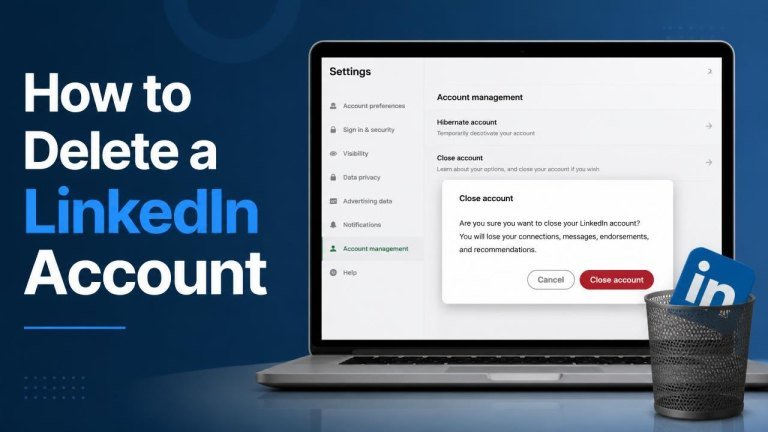
Before deleting your LinkedIn account, consider whether you need to preserve your connections, messages, recommendations, or profile information. Account deletion is a significant step, but LinkedIn also provides alternatives if you only want to take a break or make your profile less visible.
What to Do Before Deleting Your LinkedIn Account
Take a few minutes to review your account before starting the deletion process. Save any important connections, copy useful recommendations, and download a copy of your personal data if you may need it later.
- Record contact details for professional connections you want to keep.
- Save work history, recommendations, endorsements, or profile content you may want for your records.
- Cancel or review any active subscriptions, such as LinkedIn Premium, separately if necessary.
- Check whether LinkedIn is being used to sign in to other services.
- Make sure you can access the email address associated with your account in case LinkedIn requests confirmation.
How to Delete a LinkedIn Account on a Desktop
LinkedIn’s menu names and layout may change, but the account closure option is generally found in the settings area. Look for Settings & Privacy, then open the section related to account preferences or account management.
- Sign in to LinkedIn using a web browser.
- Click your profile picture or the account menu near the top of the page.
- Select Settings & Privacy.
- Open the account preferences or account management section.
- Choose the option to close, delete, or hibernate your account.
- Select the reason for closing the account when prompted.
- Enter your password and complete any additional verification.
- Confirm that you want to close the account.
Read each confirmation screen carefully. If you only see an option to hibernate the account, review the available account-management choices or use LinkedIn’s help resources to locate the permanent closure setting.

How to Delete a LinkedIn Account in the Mobile App
You can usually manage account closure from the LinkedIn mobile app, although the exact navigation may differ between Android and iPhone. Start with your profile picture, open Settings, and look for account management options.
- Open the LinkedIn app and sign in.
- Tap your profile picture.
- Open Settings or Settings & Privacy.
- Find the account preferences, account management, or account ownership section.
- Choose the option to close or delete your account.
- Follow the prompts to provide a reason and confirm your password.
- Submit the final closure request.
If the option is difficult to find in the app, try signing in through a desktop browser. The web version may display more complete account-management controls.
What Happens After You Close Your Account?
Closing an account removes your profile from normal LinkedIn access and ends your ability to use its features through that account. Before confirming, understand that profile visibility, messages, and connections may no longer be available to you.
Some information may remain visible temporarily while systems process the closure, and copies held by other users or search engines may not disappear immediately. If you have concerns about a specific item, review LinkedIn’s current privacy and account-closure guidance before proceeding.
Consider Hibernating Your LinkedIn Account Instead
Hibernation may be a better choice if you want a break without permanently deleting your account. It can reduce your profile’s visibility while preserving certain account information for a possible return. Consider this option when you want temporary privacy, to retain professional connections, or to pause job-search activity.

To hibernate the account, open the account settings and select the hibernation option instead of permanent closure. Review the explanation shown by LinkedIn, since the effect on your profile and access may vary.
Common Problems When Deleting a LinkedIn Account
Account closure may not proceed if LinkedIn requires an extra security check or if there is an issue with your sign-in details. Confirm your password, check for a verification request, and make sure you are using the correct LinkedIn account.
Unable to Find the Delete Option
Search the settings area for account closure, hibernation, or account management. Menu labels can change, so focus on the account-related sections rather than relying on an exact label. The desktop website may also offer more options than the mobile app.
Password or Verification Issues
If your password is rejected, reset it before trying again. Complete any security verification and check the email address or phone number connected to the account. Avoid sharing verification codes with anyone.
Premium or Billing Concerns
Deleting a LinkedIn profile does not necessarily replace every billing or subscription-management step. Review your Premium subscription, identify where it was purchased, and confirm that any required cancellation has been completed.
Frequently Asked Questions
Can I recover a deleted LinkedIn account?
LinkedIn may provide a limited period in which an account can be reopened, but recovery is not guaranteed after permanent closure. Treat permanently deleting an account as potentially irreversible and save anything important beforehand.
Can I delete my account without my password?
You may need to verify your identity before LinkedIn accepts a closure request. If you cannot sign in, use the account-recovery process and resolve access problems before attempting to delete an Uber account.
Will deleting LinkedIn remove my profile from search engines?
Closing the account removes or disables the LinkedIn profile, but search-engine results can take time to update. Cached or copied information may remain temporarily outside LinkedIn’s control. Allow time for search indexing to refresh.
Final Checklist Before Account Closure
Before clicking the final confirmation, verify that you have completed the download important account data, saved necessary contact information, and reviewed any subscriptions. If you are uncertain, hibernation offers a less permanent alternative.
- Save important profile and career information.
- Preserve contact details for valuable connections.
- Review Premium or other paid services.
- Check linked sign-ins and third-party access.
- Confirm that permanent deletion is really what you want.