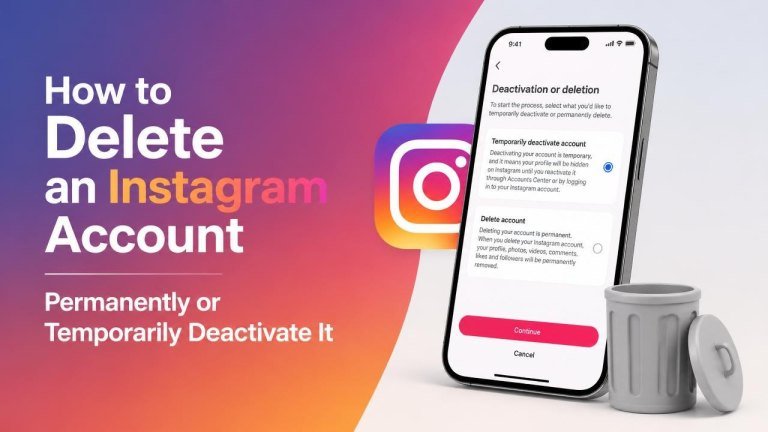
Instagram gives you two ways to step away from the platform: you can complete exit by permanently deleting your account, or temporarily deactivate it and return later. The right option depends on whether you want a complete exit or simply a break from social media.
Delete or deactivate: what is the difference?
Permanent deletion is intended for users who no longer want an Instagram account. Your profile, photos, videos, comments, followers, and other account information are scheduled for removal. This choice is generally irreversible after Instagram’s cancellation period ends.
Temporary deactivation hides your profile and content without permanently removing the account. Your information remains associated with the account, and you can typically restore access by logging back in. Deactivation is better if you are taking a short break or want to reduce your online presence without losing your content.
Before deleting or deactivating your Instagram account
Take a few minutes to prepare before changing your account status. Download a copy of your information if you want to keep your photos and videos, messages, comments, or profile details. Instagram’s account tools can help you request an export of available data.

- Confirm that you can access the correct Instagram account.
- Save any content you do not have elsewhere.
- Review connected apps and services that use Instagram login.
- Make a note of important contacts or conversations.
- Check whether you have subscriptions, business tools, or shared account responsibilities to manage first.
If you only want to stop receiving notifications, consider changing your notification settings instead of deactivating or deleting the account.
How to permanently delete an Instagram account
Instagram’s account management options are available through the Accounts Center, although menu names and locations may change slightly between the app and web version.
- Open Instagram and sign in to the account you want to remove.
- Open your profile, then access the main menu and Settings and activity.
- Open Accounts Center and choose the account or profile details section.
- Select the option related to account ownership or control, then choose Deactivation or deletion.
- Select the Instagram account you want to manage.
- Choose Delete account and continue through the confirmation steps.
- Select a reason if requested, enter your password, and confirm the deletion request.
You can also try Instagram’s official account deletion page in a web browser if the option is difficult to find in the app. Sign in carefully and verify that you are managing the intended account before confirming.
What happens after you request deletion?
Instagram normally provides a period during which you may cancel the request by signing back in. During that time, the account may not be publicly visible, but the deletion is not necessarily complete. Avoid logging back in if you are certain you want the account removed, because cancellation may restore the deletion process.
Once the applicable period ends, deletion is intended to be permanent. Some information may remain in backup systems for a limited time or be retained where required for security, legal, or operational reasons. For the most accurate details, review Instagram’s current deletion notice before submitting the request.
How to temporarily deactivate an Instagram account
Temporary deactivation hides your profile and content while preserving the account. It can be a practical option when you want privacy, a break from scrolling, or time away from posting without losing your Instagram history.

- Sign in to Instagram using the app or a web browser.
- Open your profile and go to Settings and activity.
- Enter Accounts Center, then open the account ownership or control options.
- Choose Deactivation or deletion and select the relevant Instagram account.
- Choose Deactivate account, then continue.
- Provide a reason and password if Instagram asks for them.
- Confirm the deactivation request.
After deactivation, your profile, posts, comments, and likes may be hidden from other users. To return, sign in again with your usual credentials. If Instagram limits how often an account can be deactivated, follow the instructions shown during the process.
What to do if you cannot access the account
You usually need to verify your identity or sign in before deleting or deactivating an account. If you forgot your password, use Instagram’s password recovery process from the login screen. If you lost access to the email address or phone number connected to the account, follow the platform’s account recovery steps.
For a hacked account, use Instagram’s official hacked-account support route rather than relying on unofficial services. Never share your password or security codes with someone who promises to delete the account for you.
Which option should you choose?
Choose permanent deletion if you are finished with Instagram and have saved everything you may need. Choose temporary deactivation if you are unsure, want to keep your content, or expect to return later.
When in doubt, deactivation is the safer first step. It gives you time away from the platform without immediately committing to permanent removal. If you later decide to leave for good, you can submit a deletion request after reviewing your account one more time.
Frequently asked questions
Can I delete Instagram from the mobile app?
Yes. The deletion and deactivation controls are generally available through Instagram’s Accounts Center in the app. If you cannot find them, update the app or try a browser while signed in.
Will uninstalling Instagram delete my account?
No. Uninstalling the app only removes it from your device. Your account, profile, and content remain online unless you use the official deletion or deactivation controls.
Can I reactivate a deactivated account?
In most cases, you can reactivate a temporarily deactivated account by signing in again. If the login does not work, use Instagram’s account recovery options and check for any on-screen instructions.
Should I delete the app before deleting my account?
You do not need to uninstall the app first. Complete the account request, save any confirmation details, and then remove the app if you no longer want it on your device. Remember to cancel any separate services or subscriptions connected to the account.