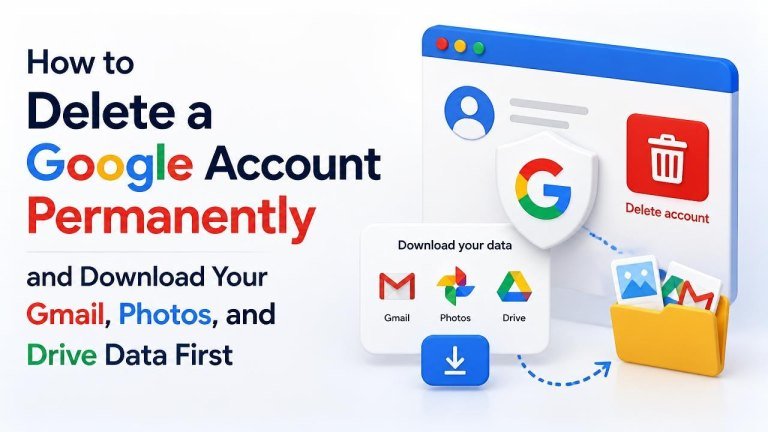
Deleting a Google Account is a permanent decision. It can remove access to Gmail, Google Photos, Google Drive, YouTube, contacts, purchases, subscriptions, and other services connected to that account. Before you continue, download anything you want to keep and update accounts that use your Google email address, including guidance on how to delete an X account permanently.
What Happens When You Delete a Google Account?
Account deletion removes your Gmail messages, Google Photos library, and Drive files associated with the account. You may also lose access to Google Calendar events, contacts, YouTube content, saved account data, and sign-ins that depend on your Google credentials, including content connected to how you delete a YouTube channel.
Deleting Gmail alone is different from deleting the entire Google Account. If you only want to stop using Gmail, you can remove Gmail while keeping other Google services. If you delete the account, however, the action affects the broader account and may not be reversible.
Before You Delete Your Account
Take time to complete a few checks before starting. These steps can prevent lost files, broken logins, and unexpected billing or subscription issues.

- Review the Google Account data you want to keep.
- Change the email address on banking and shopping accounts.
- Check apps and websites that use Sign in with Google.
- Cancel or transfer relevant subscriptions and paid services.
- Tell important contacts about your new email address.
- Verify that your downloaded backup files open correctly.
Download Your Google Data with Google Takeout
Google Takeout lets you create an export of information stored across supported Google services. You can choose specific products, select file formats and archive sizes, and request a download or another available delivery method.
Choose the Data You Want to Export
Open Google Takeout while signed in to the account you plan to delete. Select the services you need, such as Gmail, Google Photos, and Google Drive. You can also include Contacts, Calendar, YouTube, Keep, Maps data, or other available products.
For Gmail, review whether you need all messages or specific labels. For Photos, remember that the export may include albums, metadata, and files organized across multiple folders. For Drive, include documents and other files stored in My Drive or other selectable locations.
Configure and Create the Export
After selecting your products, choose the file type, archive size, and delivery method. A larger export may be divided into multiple archive files. Follow the on-screen instructions to create the export, then wait for Google to prepare it.
When the export is ready, download every archive and store a second copy in a secure location. Open representative files from Gmail, Photos, and Drive to confirm that the backup is usable before deleting your account.
How to Download Gmail, Photos, and Drive Files Separately
Google Takeout is usually the most convenient option for a complete export, but you can also save selected items manually when you only need a smaller set of data.
- In Gmail, use the download or forwarding options available for messages you want to preserve.
- In Google Photos, select important images or videos and download them to your computer or an external drive.
- In Google Drive, select files or folders, open the menu, and choose the available download option.
Manual downloads are useful for a few files, but they may not capture your entire account. For a comprehensive backup, use a complete export and keep the original archives until you have checked the contents.
How to Delete a Google Account Permanently
Once your backup is complete, open your Google Account settings and go to the section for managing or deleting your account. Select the option to delete your Google Account, review the information shown, and complete the required identity verification.
Google will display confirmations describing the data and services affected. Read these notices carefully, acknowledge the required confirmations, and select the final deletion command only when you are certain. The account may become inaccessible after deletion, so do not proceed until your backup and account transition plans are finished.
What to Do After Deletion
After deleting the account, update any remaining services that used its email address or login. Check password managers, recovery settings, newsletters, work contacts, and applications connected through Google.
If you shared Drive files or Photos albums with other people, tell them that your account will no longer be available. Also remove the old address from recovery contacts, two-factor authentication settings, and important online accounts wherever necessary, including steps to save posts before deleting X.
Common Mistakes to Avoid
- Deleting the account before verifying the Takeout archive.
- Forgetting subscriptions, purchases, or services linked to the account.
- Assuming a Gmail download includes all Google Account data.
- Leaving the old address as a recovery or login email.
- Keeping only one copy of important photos, documents, or messages.
A careful export, an account review, and a tested backup make permanent deletion much safer. If you are unsure whether you need the entire account removed, consider deleting only an individual Google service instead.