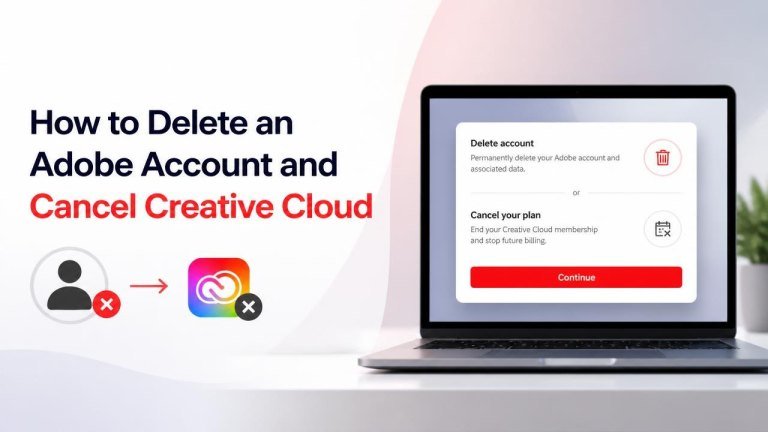
Before deleting your Adobe account, decide whether you only want to stop a paid Creative Cloud plan or permanently remove your account. These are different actions: canceling Creative Cloud ends a subscription, while deleting your Adobe account removes your account and associated data.
Before You Cancel or Delete Your Adobe Account
Take a few minutes to protect your files and review the consequences first. Download important documents, photos, projects, and other assets stored in Creative Cloud storage. Also save any files that depend on Adobe services, and make sure you can access another email address if you plan to stop using your Adobe account.
Review your active plans, billing details, and renewal information in your Adobe account. If you use Adobe services for work, school, or a team, check whether the account is managed by an administrator. You may not be able to delete a managed account yourself.
How to Cancel an Adobe Creative Cloud Subscription
You can usually cancel a Creative Cloud plan from your Adobe account settings. The exact screens may vary depending on how you purchased the plan, so follow the account prompts carefully.
Cancel a Plan Purchased Directly From Adobe
- Sign in to your Adobe account on the Adobe website.
- Open the Plans or account management area.
- Find the Creative Cloud subscription you want to stop and select the option to manage it.
- Choose Cancel your plan or the equivalent cancellation option.
- Review the displayed information about your plan, billing, and any applicable terms.
- Confirm the cancellation and look for an email or account message confirming the change.
Do not assume that closing the browser completes the process. Continue until you receive a cancellation confirmation or can see that the plan is no longer scheduled to renew.
Cancel a Subscription Purchased Through Another Store
If you subscribed through Apple, Google, or another marketplace, manage the subscription through that provider instead of Adobe. Open the store’s subscription settings, locate the Adobe plan, and follow the provider’s cancellation steps.
After canceling through the marketplace, keep the confirmation email or take a screenshot for your records. If the plan still appears active in Adobe, contact the store or Adobe Support with your purchase details.
What Happens After You Cancel Creative Cloud?
Cancellation normally affects future renewal, but access to paid features may continue until the end of the current billing period or according to the terms shown during cancellation. Your Adobe apps may switch to limited functionality, and cloud storage access can change after the plan ends.
Before the plan expires, download or move files you need. Check shared libraries, cloud documents, Lightroom content, and other stored projects separately because different Adobe services may have different access rules.
If you are concerned about a fee, refund, or billing adjustment, review the terms presented during cancellation and contact Adobe Support. Avoid relying on assumptions about refund eligibility because it can depend on the plan, purchase method, region, and timing.

How to Permanently Delete an Adobe Account
Account deletion is more extensive than canceling a subscription. It can remove your profile information, account access, stored content, and access to Adobe services. Make sure you have canceled applicable plans and backed up everything you want to keep before starting, including your personal data.
- Sign in to your Adobe account.
- Open the account privacy or account settings area.
- Look for an option such as Delete account or account deletion.
- Read the warnings about losing access to products, files, and services.
- Follow the verification steps and confirm that you want to permanently delete the account.
Adobe may ask you to confirm your identity or resolve an active subscription before allowing deletion. If you cannot find the deletion option, use Adobe’s official support or privacy request process rather than giving your login details to a third party.
Important Checks After Cancellation or Deletion
Save your confirmation messages and monitor your payment method for future charges. If a charge appears after you canceled, compare it with the cancellation date and contact the appropriate provider promptly.
Remove Adobe applications from devices if you no longer need them, but remember that uninstalling an app does not cancel a plan or delete an account. Also update any services where you used your Adobe sign-in, especially if you are moving to a different email address.
Common Problems and Practical Solutions
No cancellation button: The plan may be managed by an organization, purchased through a marketplace, or affected by an account issue. Check who bills you and contact the relevant administrator or support team.
Files are missing: Sign in before the plan ends and download available content. Check local folders, shared projects, and device backups for additional copies.
You still receive billing emails: Confirm whether they relate to a different Adobe account, another active plan, or a marketplace subscription. Use the invoice details to identify the correct account.
You cannot delete the account: Cancel active services, resolve payment issues, and review Adobe’s official privacy or support instructions. Keep records of any request you submit.
Cancellation Checklist
- Download important Creative Cloud files and projects.
- Check every Adobe plan linked to your account.
- Identify whether Adobe or another store handles billing.
- Complete the cancellation confirmation process.
- Review storage and app access before the plan ends.
- Delete the account only after you are certain you no longer need it.
Canceling Creative Cloud is usually the right choice if you want to stop billing while keeping your Adobe account. Permanent deletion is appropriate only when you are ready to give up account access, cloud content, and connected services. Back up your data first, verify the cancellation, and use Adobe’s official account tools for the safest process.