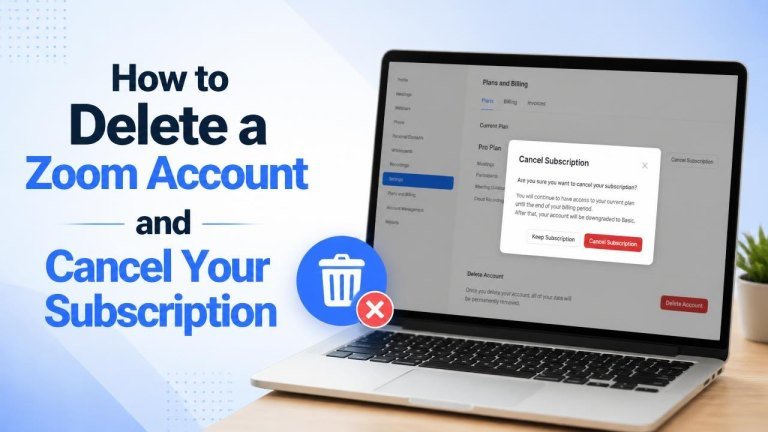
Deleting Zoom is a two-step process: first cancel any paid subscription, then permanently close your account. Before you begin, check how you are billed, save anything you need, and confirm that you are signed in to the correct Zoom account.
Before deleting your Zoom account
Account deletion is generally permanent, so review your account carefully first. Download any cloud recordings, reports, or other files you want to keep, and make sure you know which email address is associated with the account. See how to save files before deleting an account.
If you use Zoom for work or belong to an organization, check whether you are an account owner, administrator, or member. A company-managed account may require an administrator to handle cancellation or deletion.
How to cancel a paid Zoom subscription
Cancel your subscription before deleting the account. This helps prevent future charges and gives you time to resolve any billing questions while the account is still accessible.
Cancel a subscription purchased directly from Zoom
- Sign in to the Zoom web portal in a browser.
- Open Account Management and select Billing.
- Find the active plan under your current subscriptions.
- Select the option to cancel the subscription or turn off automatic renewal, then follow the prompts.
- Review the confirmation message and keep any cancellation email or reference details.
Depending on the plan and billing terms, cancellation may stop renewal while allowing access until the end of the current billing period. Check the confirmation screen for the effective date and any applicable terms.
Cancel a subscription purchased through an app store
If you subscribed through Apple or Google, manage the subscription in the relevant App Store or Google Play account rather than only in Zoom. Look for the subscription connected to your Zoom login, then confirm that automatic renewal is disabled. This is similar to how you cancel a subscription before closing an account.
If you are unsure where billing is handled, check your receipt or bank statement. Canceling in the wrong place may not stop the subscription.
How to delete your Zoom account permanently
After canceling any paid plan, sign in to Zoom from a web browser and open your account settings. The exact menu wording may change, but the deletion option is usually located in your account profile or account-management settings.
- Sign in to the Zoom web portal.
- Open your profile or account settings.
- Look for Terminate My Account, Delete Account, or a similar option.
- Review the warning about permanent deletion.
- Confirm the request when prompted.
Once confirmed, you may be signed out and unable to recover the account through the usual login process. If you do not see a deletion option, your account may be managed by an organization, or an active paid plan may still need to be canceled.
What happens after account deletion?
Deleting the account can remove access to your profile, meeting settings, contacts, and account-related information. It may also affect cloud recordings, scheduled meetings, and other data associated with the account.
Account deletion does not necessarily reverse charges that have already been processed. Keep your cancellation confirmation and billing records in case you need to contact Zoom Support or your payment provider.
Common problems when canceling or deleting Zoom
If the cancellation or deletion option is missing, check whether you are signed in with the correct email address and whether you have the necessary account permissions. Business and education accounts may be controlled by an administrator.
If you continue to see charges, identify whether they come from Zoom directly or an app store. Also check for another Zoom account using a different email address. When needed, contact Zoom Support with your account and billing details, but avoid sending passwords or payment information through unsecured channels.
Quick checklist before you finish
- Save important recordings and account files.
- Cancel every paid subscription connected to the account.
- Confirm the cancellation and keep the billing receipt.
- Check whether billing is managed by Zoom, Apple, Google, or an organization.
- Delete the account only after confirming that you no longer need access.
Following these steps helps you cancel billing first and close the correct Zoom account with fewer surprises.