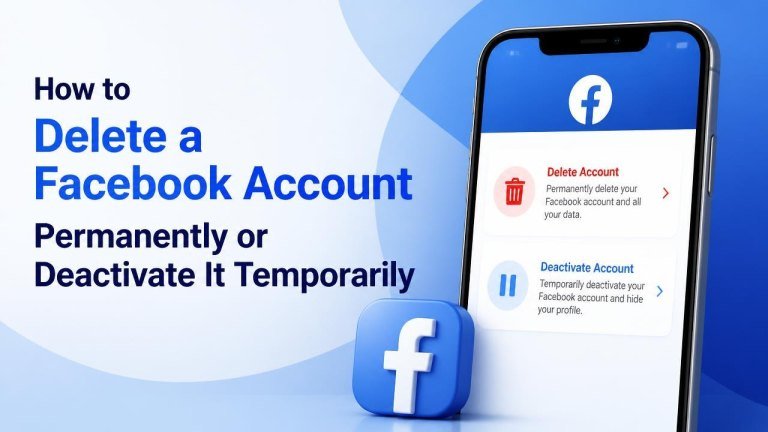
Facebook gives you two different ways to step away from the platform: deactivation, which is temporary, and permanent deletion, which removes your account after the available cancellation period. The delete or deactivate Instagram guide follows a similar choice. The right choice depends on whether you want a short break or no longer want to use Facebook at all.
Before You Delete or Deactivate Facebook
Before making a decision, review your photos and posts, download a copy of important information, and check which services use Facebook Login. You should also save contact details for people you may otherwise reach only through Messenger.
Consider whether you manage any Pages, groups, advertising accounts, or business assets. Transfer ownership or assign another trusted administrator before removing your account so those assets do not become difficult to manage, much like you would transfer your Discord servers before deleting that account.
How to Deactivate Your Facebook Account Temporarily
Deactivation hides your profile from most people while allowing you to return later. Your profile visibility is limited, but some activity, such as messages you have already sent, may remain visible to other people.

- Open Facebook and select your profile picture.
- Go to Settings & privacy, then open Settings.
- Find Accounts Center and choose the section for personal details or account ownership and control.
- Select Deactivation or deletion.
- Choose your Facebook account, select Deactivate account, and continue.
- Follow the prompts, confirm your choice, and enter your password if requested.
Facebook may offer options related to Messenger, automatic reactivation, or a scheduled return. Read each screen carefully before confirming, because available choices can vary by account and app version.
What Happens When You Deactivate Facebook?
Your account is generally hidden rather than erased. You may still be able to use Messenger, and messages you previously sent can remain in other people’s inboxes. Some information connected to Pages, groups, or shared content may also continue to appear.
To return, log in again using your usual login details. Reactivation may restore your profile and access to your Facebook services, although connected accounts and settings should be checked after you return.
How to Delete Your Facebook Account Permanently
Permanent deletion is intended for people who no longer want their Facebook account. It can remove your profile, account information, and much of your Facebook activity, so download anything you want to keep first.
- Open Facebook and go to Settings & privacy followed by Settings.
- Open Accounts Center, then locate the account ownership or personal details options.
- Select Deactivation or deletion.
- Choose your Facebook account and select Delete account.
- Continue through the confirmation screens and enter your password when prompted.
- Confirm the deletion request.
Menu names can differ between the Facebook website and mobile app. If you cannot find the option, use Facebook’s settings search and look for deactivation or deletion.
What Happens After You Request Deletion?
Facebook normally provides a limited period in which you can cancel a deletion request by signing back in. The exact timing and process may depend on the account and current Facebook policy, so review the confirmation screen for the cancellation deadline.
After deletion is completed, recovery may not be possible. Some copies of information can remain in backup systems for a period, and messages already sent to other people may still be visible in their conversations.

How to Download Your Facebook Information
Before deleting your account, use Facebook’s information download tool to request a copy of your photos, videos, posts, messages, and other available data. The same precaution applies when you download TikTok account data. Choose the date range, file format, and media quality that suit your needs.
Save the downloaded archive in a secure location. If you have used Facebook for many years, the file may be large, so allow enough time for Facebook to prepare it before submitting a deletion request.
Check Apps and Services Connected to Facebook
Deleting or deactivating Facebook can affect websites and apps where you used Log in with Facebook. Visit the connected-apps area in your account settings and make a list of services that need a different sign-in method.
For each important service, add an email address and password or connect another available login option before removing Facebook. Otherwise, you may lose access when the Facebook sign-in method stops working.
Should You Deactivate or Delete Facebook?
Choose deactivation if you want a break, might return later, or need time to decide. It is reversible and keeps the possibility of restoring your account.
Choose permanent deletion if you are confident that you no longer want the account and have saved the information you need. If you are uncertain, deactivation is the safer first step because it does not immediately commit you to removing your account.
Frequently Asked Questions
Can I reactivate a deactivated Facebook account?
In most cases, you can reactivate a deactivated account by signing in again. Check your email address, password, and any security verification details before attempting to log in.
Will deleting Facebook delete Messenger messages?
Messages you sent may continue to appear in other people’s conversations even after account deletion. Account removal does not necessarily erase messages already delivered to other users.
Can I cancel a Facebook deletion request?
You may be able to cancel the request by signing in during Facebook’s stated cancellation period. Look for the displayed cancellation instructions and act before the deadline shown in your account.
Final Checklist Before Leaving Facebook
Before confirming your choice, download your account information, update connected-app logins, transfer Page or group responsibilities, and record important contacts. Then select either deactivation for a temporary break or deletion for a permanent exit.