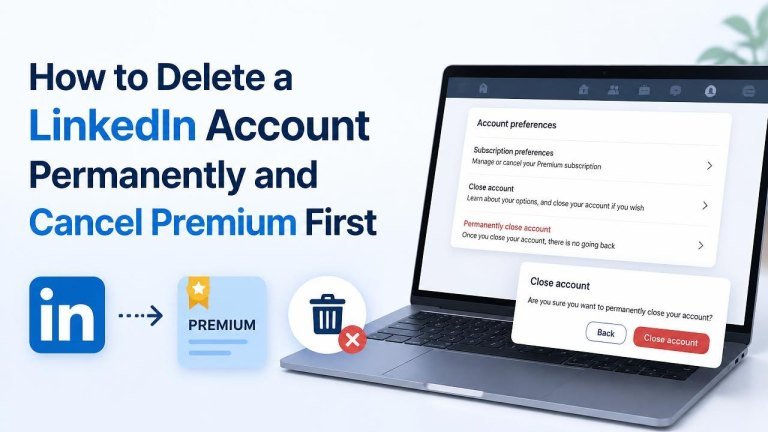
Deleting LinkedIn permanently is straightforward, but it is important to complete a few checks first. If you have LinkedIn Premium, cancel the subscription before closing your account to help prevent future billing and avoid losing access to subscription management options.
Before deleting your LinkedIn account
Account closure is generally permanent, so review your profile and download any information you may want to keep. Consider saving your connections, messages, recommendations, posts, and other professional records before continuing.
- Export a copy of your LinkedIn data from the account settings.
- Save contact details for important connections if you need them later.
- Review any pages, groups, job postings, or company responsibilities linked to your account.
- Check whether another service uses LinkedIn for sign-in.
- Make sure you can access the email address associated with your account.
Closing your account can remove your profile from LinkedIn and may affect content or activity connected to it. If you are unsure, temporarily hibernating the account may be a better alternative.
How to cancel LinkedIn Premium before closing your account
Cancel Premium before deleting your profile. The cancellation process depends on where you originally purchased the subscription, so identify the correct billing platform first. After cancellation, verify the renewal status and keep any confirmation email or receipt.
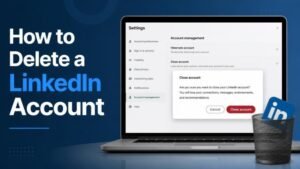
Cancel Premium on LinkedIn
If you subscribed directly through LinkedIn, sign in and open your account or profile menu. Go to Settings & Privacy, find the Subscriptions and payments area, and open your Premium subscription. Choose the option to manage or cancel the plan, then follow the on-screen instructions.
Read each confirmation screen carefully. LinkedIn may show the date when Premium access ends, and cancellation may stop future renewals rather than immediately removing access you have already paid for.
Cancel a subscription purchased through Apple or Google
If you subscribed through an app store, LinkedIn may not be able to cancel the plan for you. Use the subscription settings for the account that made the purchase. On Apple devices, manage it through your Apple account subscriptions. On Android, manage it through Google Play subscriptions.
Look for LinkedIn in the list of active subscriptions and select Cancel subscription. Confirm the cancellation and check the displayed expiration date. Deleting the LinkedIn account does not necessarily replace the required app-store cancellation process.
Cancel Premium through a third-party provider
Some subscriptions may be managed through another provider or organization. In that case, contact the provider that handles your payments and account access. Keep written confirmation that recurring billing has been stopped before deleting your LinkedIn profile.
How to delete a LinkedIn account on a computer
After canceling Premium, sign in to LinkedIn using a web browser. Open your profile menu and choose Settings & Privacy. In the account management section, find the option labeled Close account or a similar account-closure option.
- Select the reason you are closing the account.
- Enter your password if LinkedIn requests verification.
- Review the information about losing access to your profile and account data.
- Confirm that you want to close the account.
Use the exact wording and prompts shown in your account, because LinkedIn can change the location or labels of settings over time. If the closure does not complete, check for an incorrect password, an account restriction, or a required security verification step.

How to delete a LinkedIn account on mobile
Open the LinkedIn app and tap your profile picture. Go to Settings, open the account or account preferences area, and look for the option to close your account. Follow the prompts to select a reason, verify your identity, and confirm the deletion request.
If the app does not show the relevant option, update it or use a mobile browser to access LinkedIn’s settings. The important step is to complete the final confirmation rather than simply removing the app from your phone.
What happens after you close your LinkedIn account?
Closing the account removes your ability to sign in and use your LinkedIn profile. Your profile visibility, connections, messages, recommendations, and other account features may be affected or removed according to LinkedIn’s account-closure process.
Deleting the app is not the same as deleting the account, and signing out does not stop a Premium subscription. Keep your cancellation confirmation and watch your payment method for unexpected renewal activity. If a charge appears after cancellation, contact the billing platform that processed the payment.
Can you recover a deleted LinkedIn account?
LinkedIn may provide a limited period in which a closed account can be reopened, but recovery availability can depend on the account and the timing of the request. Do not assume that a closed account can always be restored. Treat the process as irreversible and save needed information before confirming deletion.
If you change your mind, try signing in promptly and follow any available reopening instructions. If the account can no longer be restored, you may need to create a new profile.
Alternatives to permanently deleting LinkedIn
If you only need a break, consider hibernating your account instead of closing it. This can make your profile unavailable while allowing you to return later, subject to LinkedIn’s current options and eligibility requirements.
You can also reduce notifications, adjust profile visibility, remove selected information, or cancel Premium without deleting the entire account. These options are useful when your goal is improved privacy or fewer distractions rather than permanent removal.
Final checklist for permanent deletion
Before confirming closure, complete this final checklist:
- Cancel Premium through the correct billing provider.
- Confirm that automatic renewal is turned off.
- Download or save any information you need.
- Review connected services, pages, and professional responsibilities.
- Close the account from LinkedIn’s account settings.
- Keep cancellation and account-closure confirmations for your records.
Once these steps are complete, your LinkedIn account should be on the correct path toward permanent closure without leaving an overlooked subscription behind.