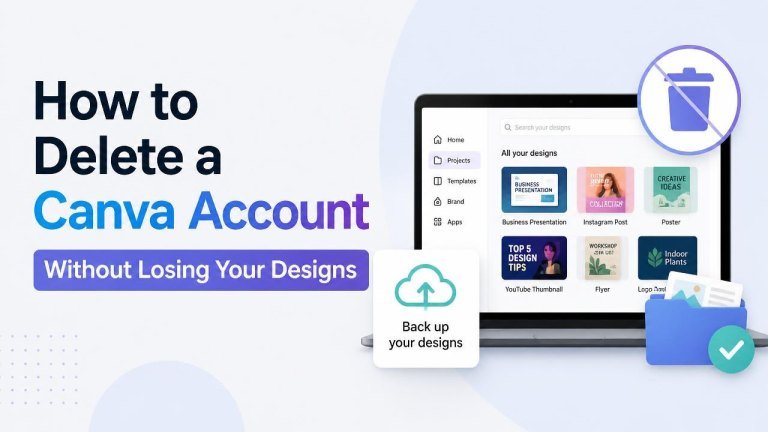
Deleting a Canva account is straightforward, but closing it too quickly can put your designs, uploaded files, folders, and shared projects at risk. Before you delete anything, take time to review your account and create reliable backups.
This guide explains how to prepare your Canva account for deletion, save your designs, transfer important projects, and complete the process with fewer surprises. Because Canva’s menus and account options may change, the exact wording or location of a setting can vary.
What to Do Before Deleting Your Canva Account
Start with a careful account review. Identify your important designs, uploaded media, and shared projects before making a permanent decision. This is especially important if you use Canva for work, school, client projects, or a team.
- Make a list of designs you may need in the future.
- Check folders, shared projects, and archived content.
- Review designs created with team members or clients.
- Look for brand assets, logos, photos, videos, and other uploads.
- Confirm whether another person needs access to any project.
How to Back Up Your Canva Designs
The safest approach is to download the designs you want to keep before deleting your account. Open each important design, choose the download or export option, and select a suitable file format. Use PDF for documents, PNG for high-quality images with transparency, and JPG for smaller image files when transparency is not needed.

For presentations, videos, and animated designs, choose an export format that preserves the content you need. After downloading, open a sample of each file to confirm that the text, images, and layout look correct.
Keep your backups in more than one safe location, such as your computer and a trusted cloud storage service. If you need to preserve editability, remember that an exported file may not contain all the original Canva editing features. Save the downloaded copy as a backup, but consider transferring ownership or sharing an editable copy when future changes are important.
Save Your Uploaded Images and Brand Assets
Do not focus only on finished designs. Download or store original photos, logos, and brand files separately if you own the rights to them. A finished design may not be enough if you later need to create a new version.
Also check whether a design uses stock elements or other licensed content. Your backup should be used according to the applicable license terms, particularly for commercial projects and client work.
Transfer or Share Designs You Still Need
If someone else needs to continue editing a project, do not rely only on a downloaded PDF or image. Share the design with the intended person and, where available, transfer ownership or move it to the correct team workspace. Confirm that the recipient can open and edit the design before deleting your account.
For client or business work, provide a clear handover that includes the editable design link, exported files, relevant uploads, and any instructions needed to continue the project. Ask the recipient to make a small test edit so you know access works as expected.
Cancel Canva Subscriptions Before Closing the Account
If your account has a paid plan, review the subscription separately before deleting the account. Open your account or billing settings and check the current plan, payment details, and cancellation options. A subscription may need to be canceled through the platform where it was purchased, such as a website, mobile app store, or organization-managed account.
Look for confirmation that the subscription has been canceled and keep any relevant confirmation email or billing record. If your account belongs to a team, an administrator may need to manage the plan or remove your access.
How to Delete Your Canva Account
After backing up your work and handling subscriptions, sign in to Canva and open your account settings. Look for a section related to account management, privacy, security, or personal information. The deletion option may be labeled Delete account, Close account, or something similar.
Follow the on-screen instructions carefully. Canva may ask you to confirm your decision, select a reason, enter your password, or complete an additional verification step. Read the warning before confirming, because account deletion may affect your design access, profile data, and shared work.
If you cannot find the option, use Canva’s official Help Center or contact support through the available account assistance channels. Avoid giving your password or verification codes to anyone claiming to offer unofficial deletion help.
What to Check After Account Deletion
Once you complete the process, check your email for a confirmation message and keep it for your records. Test the backup files you saved and confirm that the people receiving transferred projects can still access their copies.
If you previously used Canva to sign in to another service, review that service separately. Also remove saved Canva credentials from your password manager or browser if you no longer plan to use the account. These steps help protect your privacy and saved credentials, and your backup files.
Can You Recover a Deleted Canva Account?
Do not assume that a deleted account or its designs can be restored. Recovery options may depend on Canva’s current policies and the status of the account, so treat deletion as a permanent action. Before confirming, make sure your backups are complete and that any required projects have been transferred.
If you deleted the account by mistake, contact Canva through its official support channels as soon as possible. Provide accurate account details, but never share your password or security codes.
Final Checklist Before You Delete Canva
Use this checklist to make the process safer:
- Download every design you want to keep.
- Save original uploads and important brand assets.
- Confirm that exported files open correctly.
- Transfer or share editable projects with the right people.
- Cancel any subscription through the correct billing platform.
- Save relevant receipts and confirmation messages.
- Review the deletion warning before confirming.
With a complete backup and a clear handover plan, you can delete your Canva account while reducing the risk of losing valuable creative work.